
 Doc Summary

This guide explains how to create and apply schedules used for Follow Me for extensions using the PBX system. It is written for technical staff, but simple enough for any team member to follow confidently.
🎯 Purpose of This Guide #
- ✅ Explain how Follow Me scheduling works
- ✅ Show how to correctly create time-based rules
- ✅ Prevent common configuration mistakes
- ✅ Ensure calls route correctly during business / non-business hours
🧭 Navigation Path #
Step 1: Log in to the PBX Server #
- Log in to the Fusion PBX server using your admin credentials.
Step 2: Select the Correct Domain #
- Ensure the correct domain is selected before making any changes.
- This is important because schedules are domain-specific.
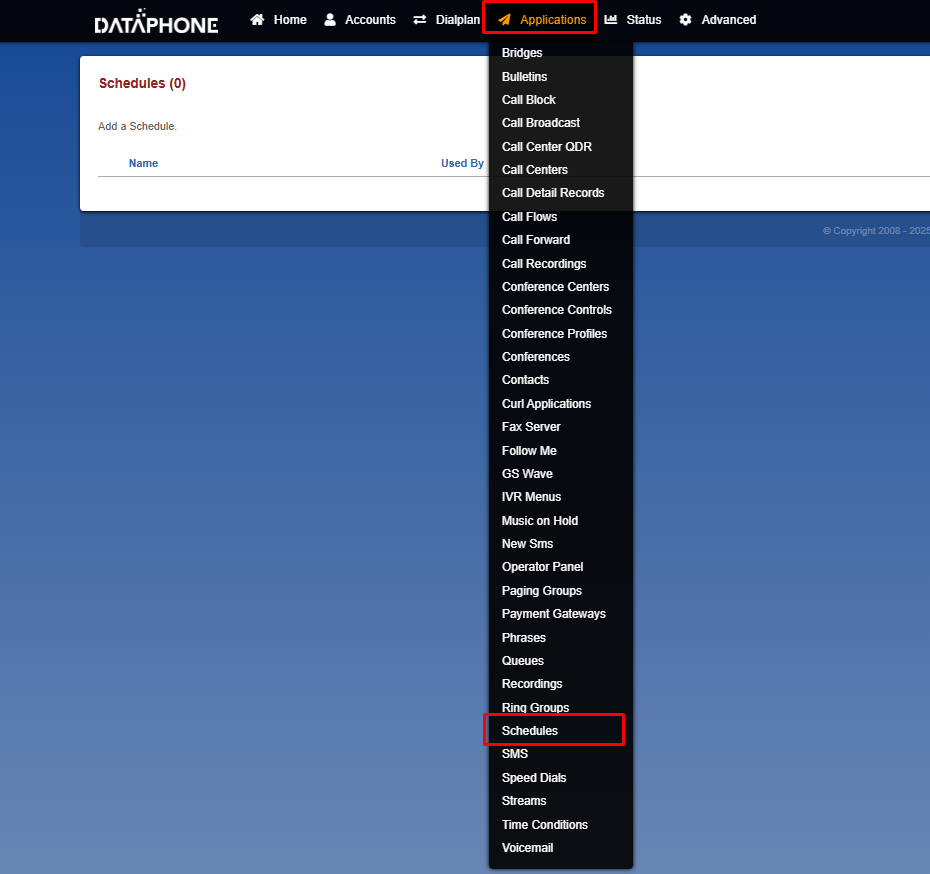
Step 3: Navigate to Schedules #
Follow this path:
Applications → Schedules
➕ Creating a New Schedule #
Step 1: Click Add #
You will see the following fields:
| Field | Description |
|---|---|
| Name | Friendly name for the schedule (e.g., After Hours Follow Me) |
| Enabled | ✔️ Enable or ❌ disable the schedule |
| Description | Optional note explaining the schedule purpose |

➡️ Once filled, continue to Rules configuration.
🧩 Configuring Rules (Core Logic) #
➕ Add a Rule #
- Click + Add Rule
- Enter a Rule Label (example: After Hours)
- Click Add Condition
🧠 Understanding Conditions (Very Important) #
Conditions define when the rule becomes active.
Available condition types include:
- Year
- Month
- Day
- Date
- Time
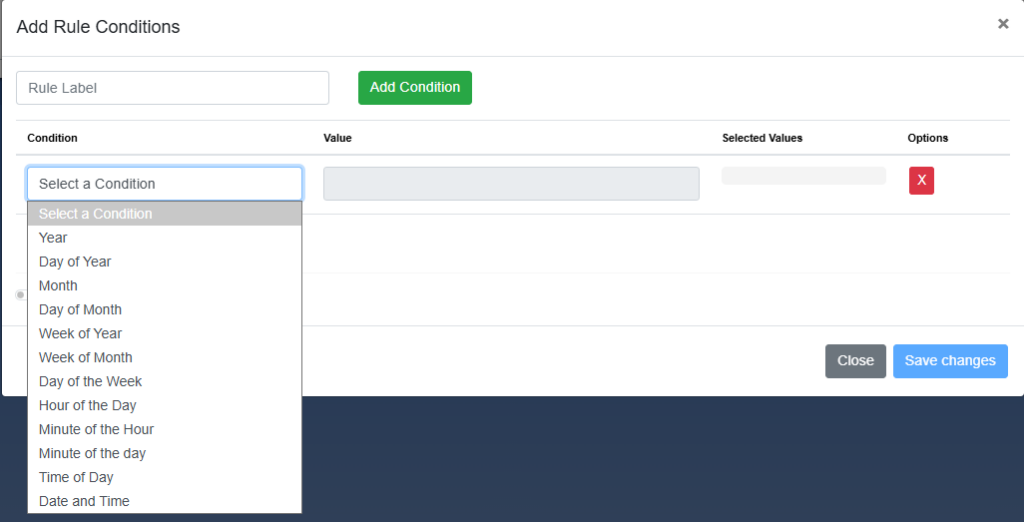
Each condition has:
- Condition type (dropdown)
- Value field (based on selected type)
⚠️ Important Rule Logic (Must Read) #
🧠 Conditions are evaluated in a linear order
This means:
- Conditions are checked top to bottom
- Once a condition matches, the system moves forward
- Order matters ⚠️
✅ Best Practice #
Always follow this order when adding conditions:
1️⃣ Year
2️⃣ Month
3️⃣ Day
4️⃣ Date
5️⃣ Time
❌ Do NOT start with Time if Year or Day is required
🧱 Adding Multiple Conditions #
If your rule needs multiple conditions:
- Click Add Condition multiple times
- Configure each condition carefully
- Ensure correct logical order
Example: #
| Condition | Value |
|---|---|
| Year | 2025, 2026 |
| Month | Jan, Feb |
| Day of the Month | 15,16,17 |
| Day of the Week | Mon, Tue, Wed |
| Time of the Day | 17:00 – 22:00 |
⛔ Break Conditions (Exception Rules) #
You can also add a Break Condition.
🔹 What is a Break Condition? #
A break condition tells the system:
“If this condition is met, ignore the above rules.”
🔹 Common Use Case #
- Holidays
- Special working days
- Emergency overrides
This works similar to normal conditions but acts as an exception rule.
💾 Saving the Rule #
After configuring conditions:
- Click Save Changes (inside the rule)
- Click Save (top-right corner of the page)
⚠️ Both steps are required for the schedule to apply.
🔀 Multiple Rules in One Schedule #
You can:
- Create multiple rules inside one schedule
- Reorder rules using drag & drop
🧠 Important #
Rules are processed from top to bottom.
✔️ Place the most specific rule at the top
✔️ General rules should go last
📘 Example: After-Hours Follow Me #
🎯 Requirement #
Forward calls to mobile only after business hours, Monday to Friday.
✅ Configuration #
Rule Conditions:
| Condition | Value |
|---|---|
| Day of the Week | Monday – Friday |
| Time of Day | 17:00 – 22:00 |
➡️ Save the rule
➡️ Save the schedule
➡️ Apply this schedule to the user’s Follow Me settings
🔗 Applying the Schedule #
Once created:
- Go to the Extension Call Forward Option
- Enable Follow Me
- Select the created Schedule
- Save changes
✅ Follow Me will now work only during the defined time window
⚠️ Common Mistakes to Avoid #
- 🚫 Forgetting to click Save at the top
- 🚫 Wrong condition order
- 🚫 Overlapping rules
- 🚫 Forgetting to apply the schedule to Follow Me
🧠 Pro Tips for Techs #
- Always test using current time simulation
- Label rules clearly (e.g., After Hours, Weekend)
- Document any custom logic
📌 Summary #
✔ Schedules control when Follow Me activates
✔ Conditions must be added in correct order
✔ Rules are evaluated top to bottom
✔ Call Forward overrides Follow Me
✔ Always save rule AND schedule


