
 Doc Summary

🎯 Overview #
In some cases, users may experience one-way audio issues when another voice application on the PC is already using the microphone or speaker in exclusive mode.
Exclusive mode allows an application to take full control of the audio device, which can interfere with other softphone or communication tools.
To resolve this, you can disable exclusive mode for all connected recording and playback devices.
🛠️ When to Use This Fix #
Use this guide if you notice:
- 🎧 One-way audio (you can hear but others can’t, or vice versa)
- 📞 Audio issues in softphone or VoIP applications
- 🔊 Microphone not working intermittently
- ⚠️ Conflicts with other voice/chat applications
🪟 Step-by-Step Guide (Windows) #
🔹 Step 1: Open Sound Settings #
- 🖱️ Right-click the 🔊 speaker icon in the system tray (bottom-right of your screen)
- Click “Sounds” from the menu
🔹 Step 2: Open Device Properties #
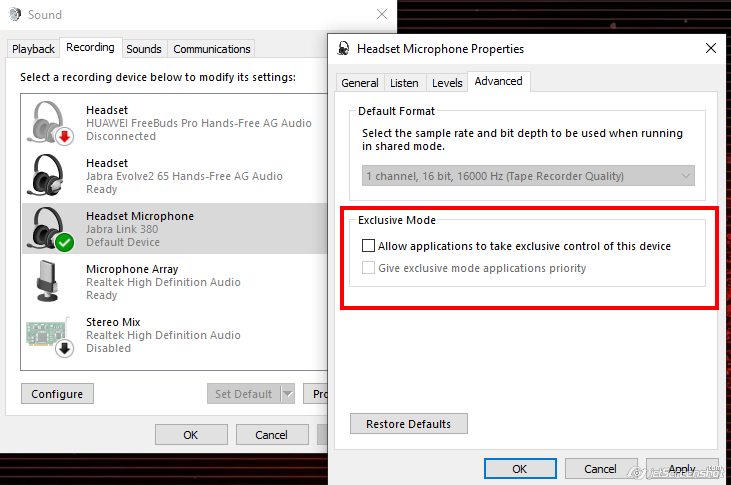
- Go to the Recording tab (for microphone devices)
- Select your active microphone 🎤
- Click “Properties”
🔹 Step 3: Disable Exclusive Mode #
- Navigate to the Advanced tab
- ❌ Uncheck the option: “Allow applications to take exclusive control of this device”
🔹 Step 4: Apply Changes #
- Click Apply
- Click OK to close the window 💾
🔹 Step 5: Repeat for Other Devices #
Repeat the same process for:
- 🎤 Other microphones
- 🔊 Playback devices (speakers/headsets)
🔄 Final Step: Restart PC #
- 🔁 Restart your computer to ensure changes take effect
✅ Result #
After disabling exclusive mode:
- Audio devices remain shared across applications
- Reduced risk of VoIP/softphone conflicts
- Improved stability for calls and audio streams
🧩 Additional Notes #
If the issue persists after applying this fix:
- Check for other applications using the microphone (Teams, Zoom, etc.)
- Ensure correct input/output devices are selected in your softphone
- Verify driver updates for audio devices


