
 Doc Summary

Purpose:
This guide explains how to create a new user in the Dataphone Portal and assign an extension so the user can access their personal dashboard, view call records, use the web dialer, and sign in to the Dataphone Desktop Application.
Overview #
By following this procedure, the end user will gain access to:
- 📊 Personal Dashboard
- 📞 Call History and Call Logs
- 🌐 Web Dialer
- 💻 Dataphone Desktop Application
Note: The credentials created during this process will be used for both the portal and the Dataphone Desktop App.
Prerequisites #
Before proceeding, ensure you have:
- Administrative access to the Dataphone Portal
- The user’s:
- First Name
- Last Name
- Email Address
- Desired Password
- The extension that should be assigned to the user
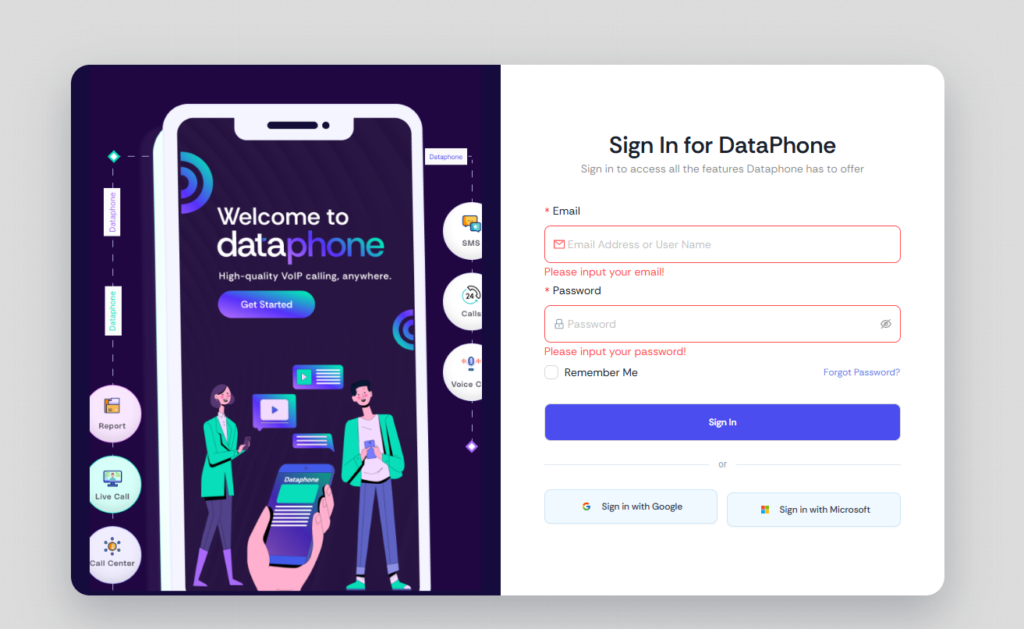
Step 1 – Log in to the Dataphone Portal #
- Open your web browser.
- Navigate to:https://portal.dataphone.cloud
- Sign in using your administrator credentials.
Step 2 – Navigate to User Management #
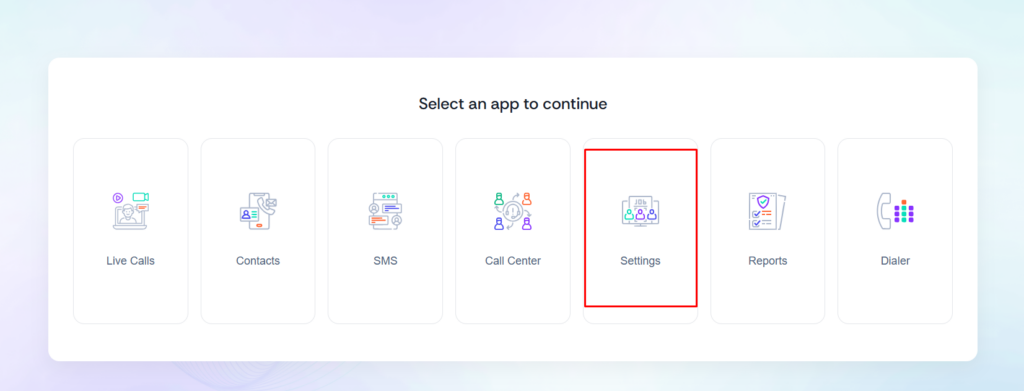
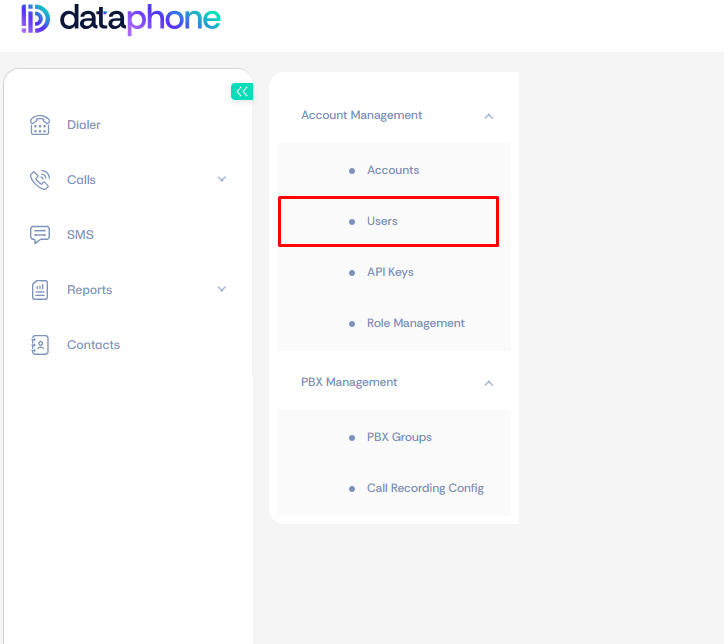
Once logged in:
- Click Settings from the menu.
- Select Users.
You will now see the list of existing portal users.
Step 3 – Create a New User #
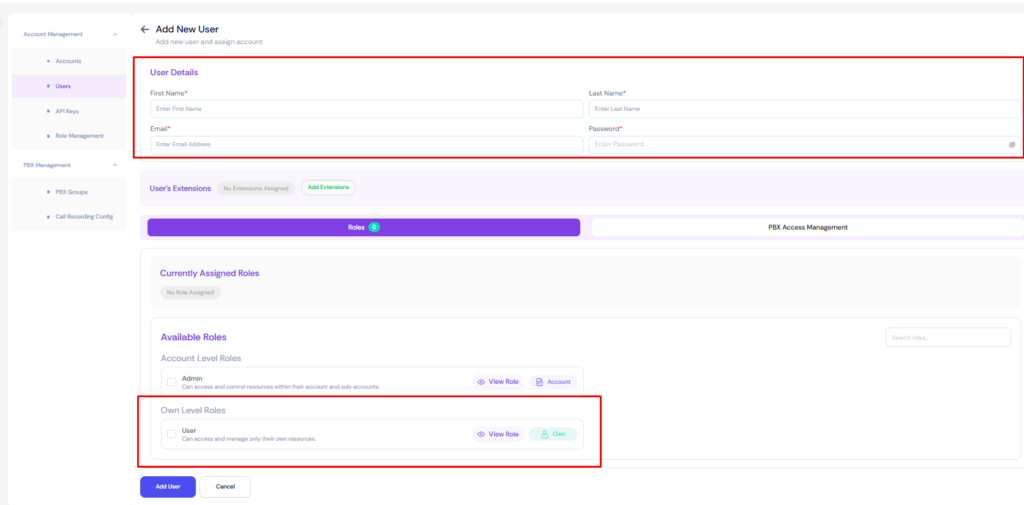
- Click Add New User.
- Complete the required fields:
- First Name
- Last Name
- Email Address
- Password
- Under Role, select:User
- Click Add User.
Step 4 – Assign an Extension to the User #
After creating the user, an extension must be assigned.
- Search for the newly created user in the users list.
- Click the ✏️ Pencil (Edit) icon next to the user’s name.
- Under User Details, locate the User Extensions section.
- Click Add Extensions.
- Select the appropriate extension for the user.
- Click Assign.
- Click Update User to save the changes.

Verification #
To confirm everything has been configured correctly:
- Verify that the assigned extension appears under User Extensions.
- Have the user sign in using the credentials that were created.
User Access After Setup #
Once the extension has been assigned successfully, the user will have access to:
| Feature | Available |
|---|---|
| Personal Dashboard | ✅ |
| Call Records / Call Logs | ✅ |
| Web Dialer | ✅ |
| Dataphone Desktop Application | ✅ |
Desktop Application Login #
The user can sign in to the Dataphone Desktop App using the same email address and password configured during this setup process.
No separate account creation is required.


