
 Doc Summary

Customer Knowledge Base Guide #
This guide explains how to view and download incoming faxes directly from your PBX web portal.
No physical fax machine required ✅
🔐 What You Need #
Before you begin, make sure you have:
- Your PBX portal login credentials
- Access to the Fax Server assigned to your account
🚪 Step 1 — Log in to the PBX Portal #
- Open your PBX web portal in your browser.
- Enter your username and password.
- Click Sign In.
🧭 Step 2 — Navigate to the Fax Section #
From the top menu, go to:
Applications ➜ Fax Server
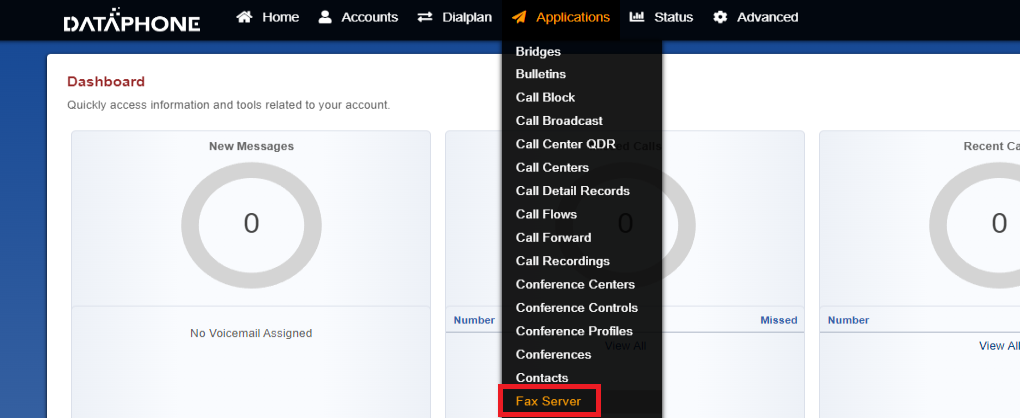
You will see one or more fax servers listed.
📡 Step 3 — Select Your Fax Server #
Click on “Inbox” from the fax server you’d like to review
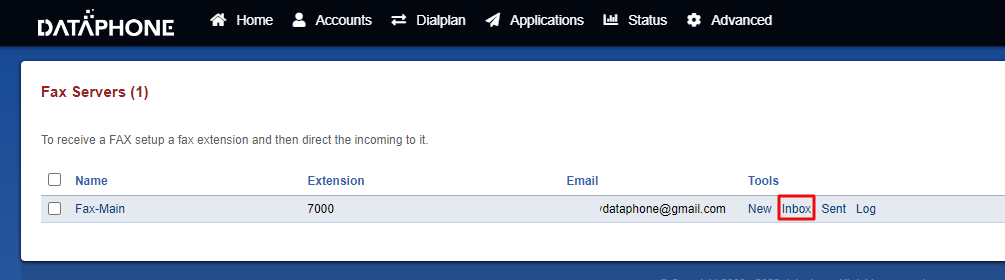
You will now see a list of all incoming faxes.
📋 What You Will See in the Inbox #
Your Inbox will display important details about each fax:
| Column | Description |
|---|---|
| 📅 Date/Time | When the fax was received |
| 📞 Caller ID Name | The sender’s fax number |
| 📄 Caller ID Number | The sender’s Caller ID Name |
| Download link for the fax file |
⬇️ Step 4 — Download a Fax #
To download a fax:
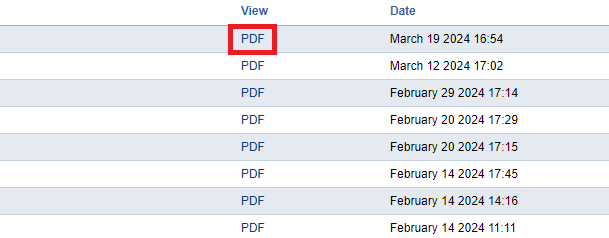
- Locate the fax in the Inbox.
- Click on the 📄 PDF link next to the fax.
- The document will open or download to your computer.
⚠️ Helpful Tips #
- If you do not see a fax, confirm you are inside the correct Fax Server
- Refresh the page if you are expecting a new fax
- Check with your administrator if you believe access permissions are missing
❓ Need Help? #
If you are unable to locate or download a fax, please contact your support team with:
- Date and approximate time of expected fax
- Sender’s fax number


