
 Doc Summary

This guide explains how to configure Follow Me for an extension in the PBX system. It is designed for technical teams, but written clearly so anyone can follow it without confusion.
🎯 Purpose of This Guide #
- ✅ Explain how to enable Follow Me on an extension
- ✅ Describe each Follow Me field clearly
- ✅ Ensure correct configuration and avoid common mistakes
- ✅ Link to schedule configuration documentation
🧭 Navigation Path #
Step 1: Log in to the PBX Server #
- Log in to the Fusion PBX server using admin credentials
Step 2: Select the Correct Domain #
- Ensure the correct domain is selected
- Follow Me settings are domain-specific
Step 3: Navigate to Call Forward Settings #
Applications → Call Forward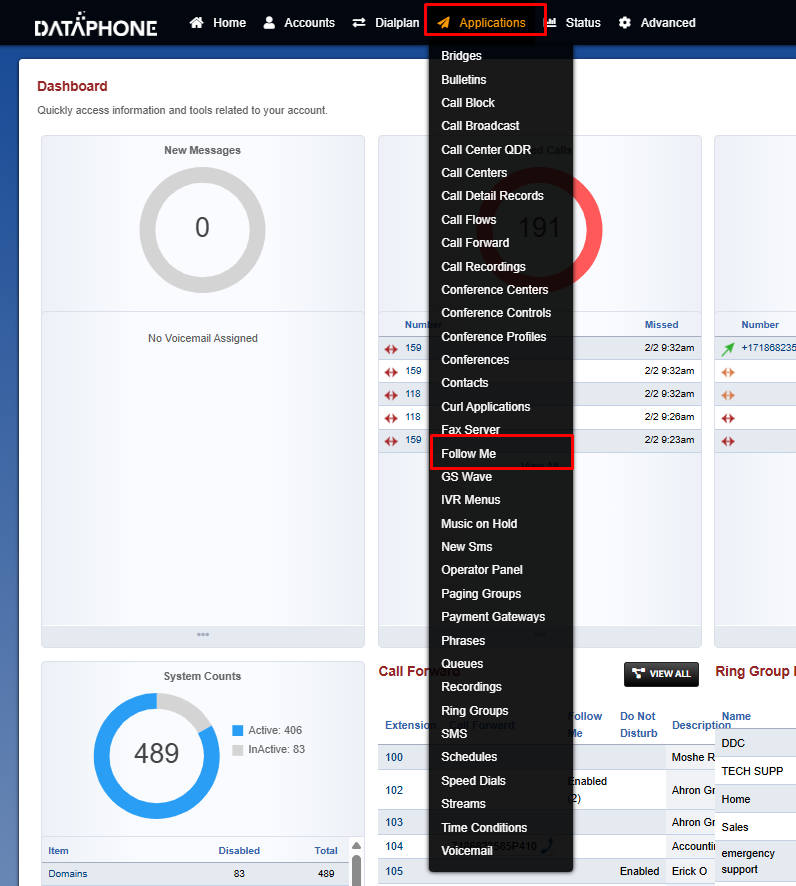
🔧 Configuring Follow Me for an Extension #
Step 4: Select the Extension #
- Click on the extension for which Follow Me needs to be configured
Step 5: Enable Follow Me #
- Enable Follow Me
- Once enabled, additional configuration fields will appear
📋 Follow Me Configuration Fields Explained #
| Field | Description |
|---|---|
| Destination | The number or extension where calls should be forwarded (e.g., mobile number, another extension) |
| Delay | Time (in seconds) to wait before forwarding the call to the destination |
| Timeout | Total ring time before the call stops attempting Follow Me |
| Prompt | If set to Confirm, the receiving party must press a key to accept the call. If left empty, the call connects automatically |
| Schedule | Defines when Follow Me should be active (business hours, after-hours, etc.) |
🕒 Schedule Configuration #
Follow Me can be controlled using a Schedule, allowing calls to forward only during specific times or days.
📘 Detailed Schedule Configuration Guide:
👉 https://www.dataphone.cloud/docs/configuring-schedules-for-follow-me/
⚠️ A schedule must be created before it can be selected in Follow Me.
💾 Saving the Configuration #
After completing all fields:
- Click Save
- Confirm the settings are applied
✅ Follow Me is now active for the selected extension
⚠️ Important Notes & Best Practices #
📌 Critical Follow Me Behavior (Must Read) #
⚠️ If a user wants their own extension to ring along with other extensions or an external number, their own extension MUST be added as the first destination.
- Follow Me works in a top-to-bottom order
- If the user’s own extension is not listed, the system may cause Follow Me to behave inconsistently.
- Follow Me will not work if Call Forward is enabled
- Always verify the correct schedule is selected
- Use Prompt = Confirm when forwarding to mobile numbers
- Test the setup after saving
🧠 Common Issues & Fixes #
| Issue | Cause | Solution |
|---|---|---|
| Follow Me not working | Call Forward enabled | Disable Call Forward |
| Calls go directly to voicemail | Timeout too short | Increase timeout |
| Mobile answers automatically | Prompt not enabled | Enable Confirm prompt |
| Schedule not applied | Schedule not saved | Save & reapply schedule |
✅ Summary #
✔ Follow Me allows calls to reach users anywhere
✔ Must be enabled per extension
✔ Schedule controls when it activates
✔ Call Forward overrides Follow Me
✔ Always save and test after configuration


