
 Doc Summary

This guide explains how to view SMS activity and export SMS reports from the customer portal.
Step 1: Open the Reports Page #
- Log in to the portal.
- From the navigation menu, click Reports.
Note: The report type is set to Calls by default.
Step 2: Change the Report Type to SMS #
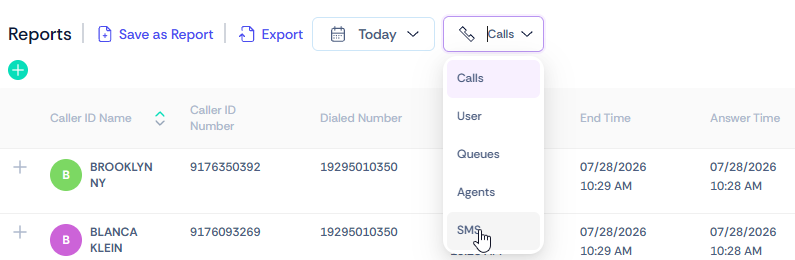
- At the top of the Reports page, locate the report type dropdown.
- Click the dropdown (which displays Calls by default).
- Select SMS.
Step 3: Select the Date and Time Range #
- Click the Time Range dropdown.
- By default, it is set to Today.
- Choose one of the preset ranges or specify a custom date and time to search for SMS records.
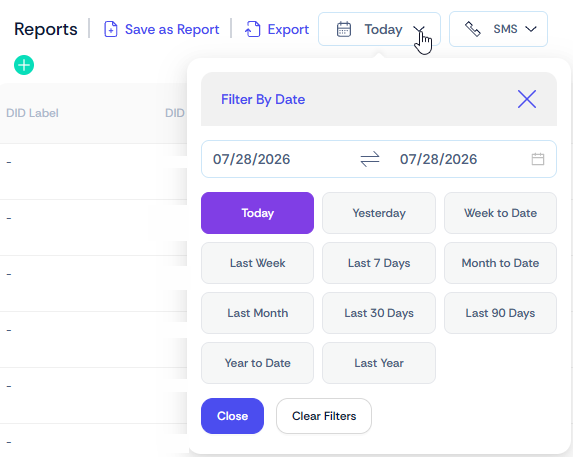
Tip: Selecting a custom date range allows you to search for SMS messages sent or received during a specific period.
Step 4: Export the SMS Report #
- After selecting SMS and the desired Time Range, click Export.

Step 5: Generate a CSV File #
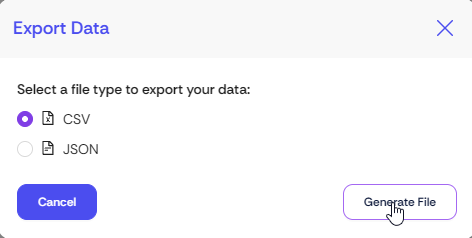
- In the Export Data window:
- Select CSV as the export format.
- Click Generate File.
The system will create a CSV file containing the SMS report, which you can download and open in spreadsheet applications such as Microsoft Excel or Google Sheets.
Summary #
To download an SMS report:
- Navigate to Reports.
- Change the report type from Calls to SMS.
- Select the desired Time Range.
- Click Export.
- Choose CSV and click Generate File.
- Download and open the generated report.


