
 Doc Summary

🎯 Overview #
This guide explains how to perform a physical factory reset on supported Yealink cordless base stations when access to the web interface is unavailable or when troubleshooting requires restoring the device to factory defaults.
✅ Supported Models #
| Series | Models |
|---|---|
| W60 Series | W60B |
| W70 Series | W70B |
| W80 Series | W80B, W80DM |
| W90 Series | W90B, W90DM |
⚠️ Important: A factory reset will erase all custom settings and restore the base station to its default configuration.
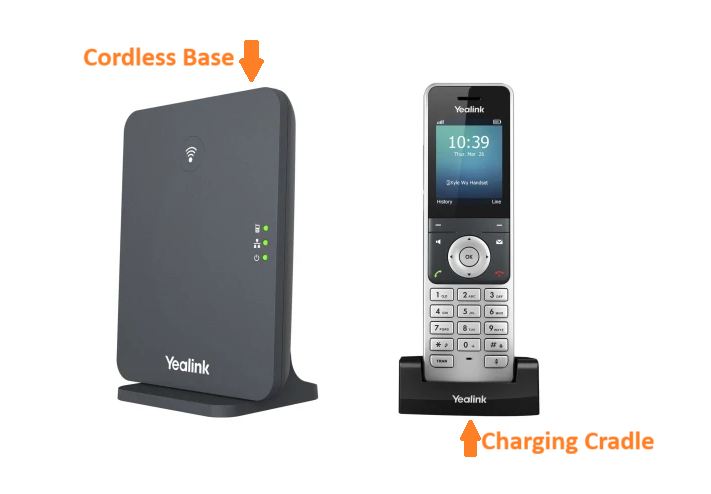
🔄 Factory Reset for W60B / W70B #
🛠 Physical Reset Procedure #
Step 1 #
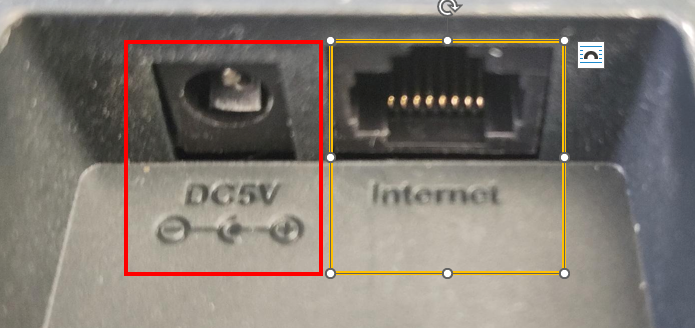
🔌 Disconnect the power supply from the cordless base.
(DC5V Power Cable or Network Cable)
Step 2 #
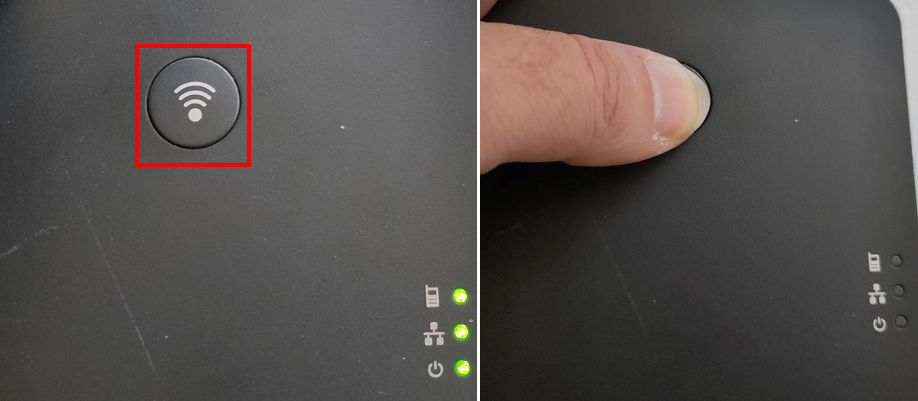
👆 Press and hold the button (Similar to the WiFi Button in front of the base) while the base is in the off state.
Do not release the button during the next step.
Step 3 #
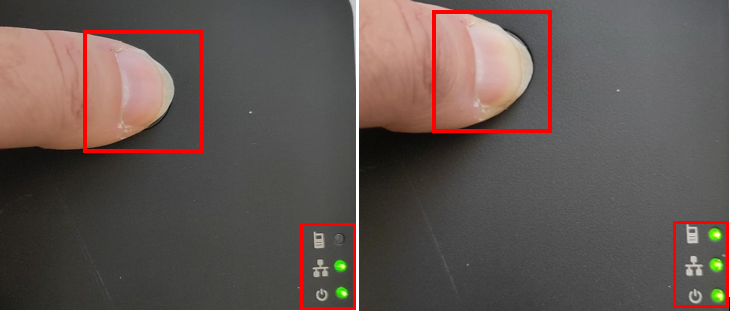
🔌 While continuing to hold the button, reconnect the power cable.
Observe the LED indicators until all LEDs illuminate.
Step 4 #
✅ Release the button and restart the base once again.
Once the base is restarted, it will be factory reset.
🔄 Factory Reset for W80B / W80DM / W90B / W90DM #
🛠 Physical Reset Procedure #
Step 1 #
🔌 Ensure the base station is powered on.
Step 2 #
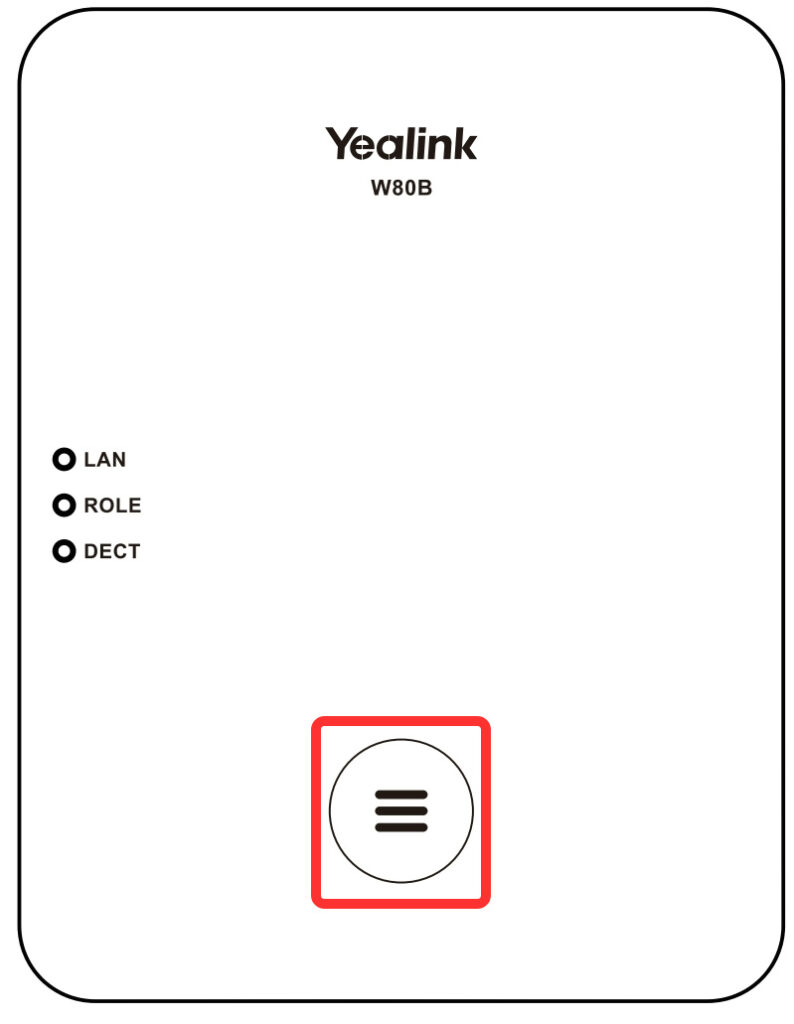
👆 Press and hold the Device button for approximately 20 seconds.
Continue holding until the LED indicator changes to a solid yellow color.
Step 3 #
✋ Release the Device button after 10 seconds once the LED is yellow.
The base station will begin the reset process automatically.
⏱ The reset procedure may take several minutes to complete.
Once the base is restarted, it will be factory reset.
📋 LED Status Reference #
| LED Status | Meaning |
|---|---|
| All LEDs illuminated | W60B/W70B reset mode activated |
| Solid Yellow LED | W80/W90 reset mode activated |
| Reboot Sequence | Factory reset in progress |


