
 Doc Summary

📌 Purpose #
This guide helps customers factory reset a Yealink phones when the phone asks for an admin password and the default credentials (admin/236446) do not work. This method uses a hardware key + power cycle process that bypasses the password prompt and restores default access.
⚠️ When to Use #
- Holding the OK button for 10 seconds prompts for an admin password instead of resetting
- Default password does not work
- Phone is locked and cannot be managed (Wi‑Fi, settings, provisioning)
🔍 Why This Happens #
- The phone was previously provisioned and the admin password was changed
- Configuration data is cached on the device
- Menu-based reset requires admin access, which may no longer be valid
🛠️ Factory Reset Steps (Recommended Method) #
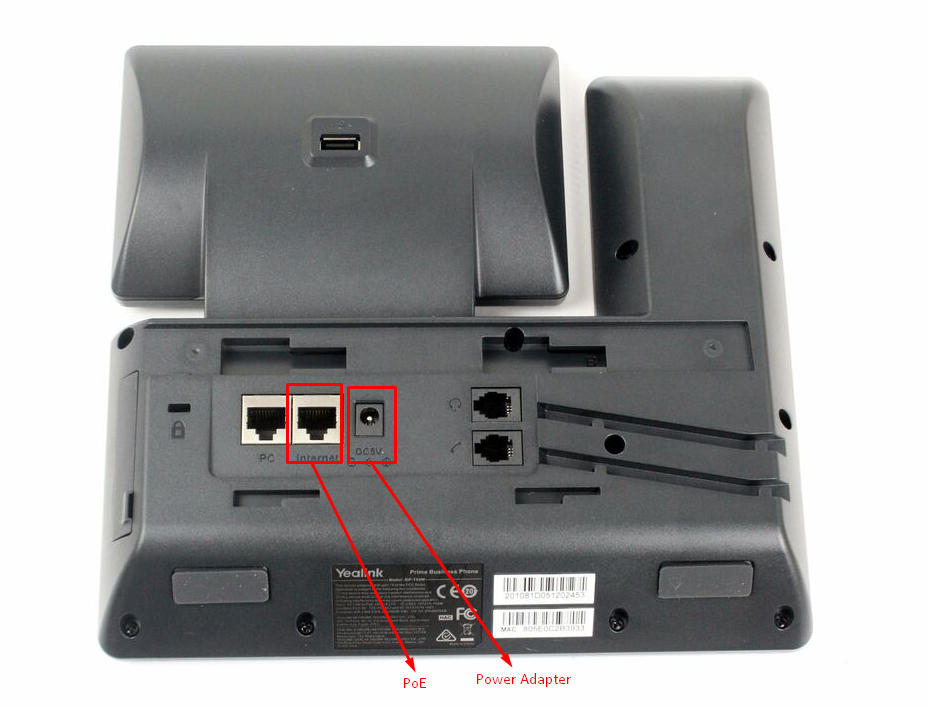
- Power off the phone (unplug power or PoE).
- Press and hold the
Speakerbutton on the phone.
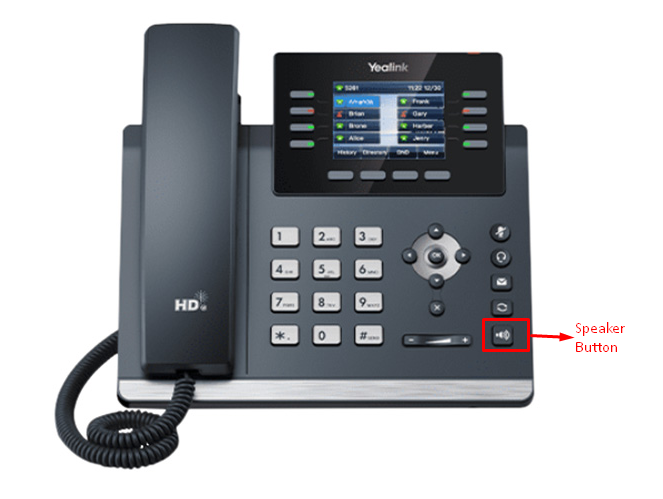
- While holding the
Speakerbutton, power the phone back on. - Continue holding the button through the Welcome screen.
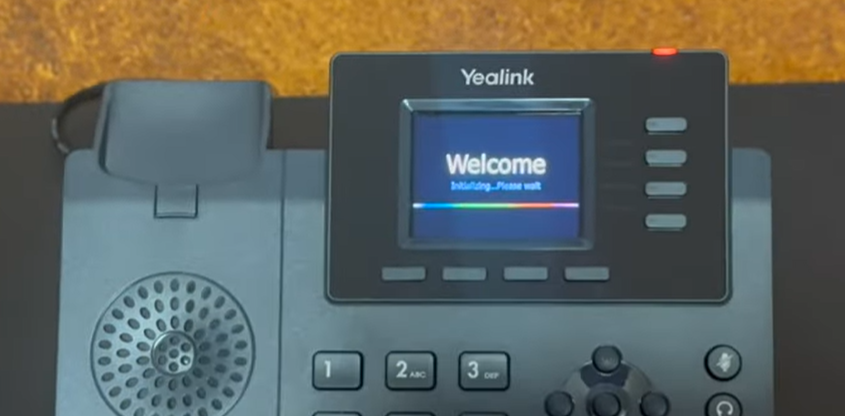
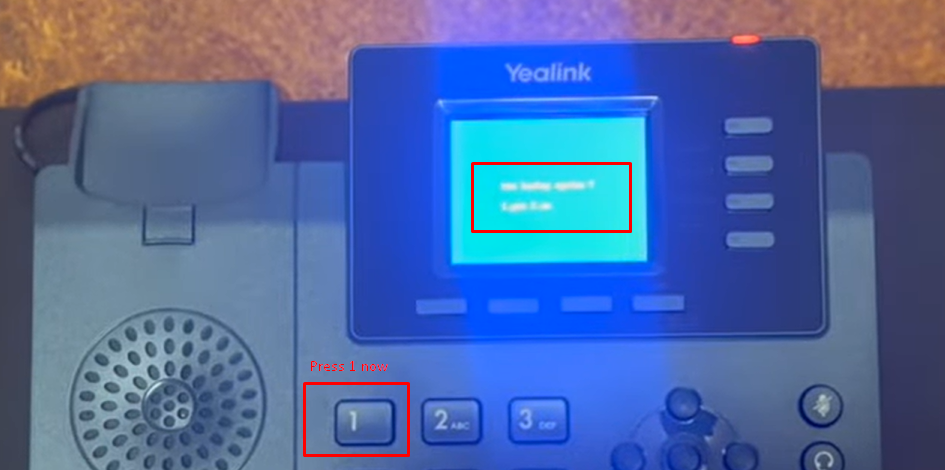
- Release the button only when the blue reset screen appears.
- When prompted, press
1to confirm the factory reset.
- The phone will reset and reboot automatically.
⏳ This may take a few minutes. Do not unplug the phone during this process.
✅ After the Reset #
- The phone is restored to factory defaults
- Default credentials will now work:
- Web UI:
admin - Desk Phone / Menu:
236446
- Web UI:
- You can now:
- Connect to Wi‑Fi
- Access settings
- Proceed with provisioning
💡 Important Notes #
- This method works specifically when the OK‑button reset asks for an admin password.
- The hardware reset clears cached configuration and restores full access.
- If the reset screen does not appear, ensure the
Speakerbutton is held continuously from power‑on.
🧑💻Need Assistance? #
If you continue to experience issues while resetting the phone, please open a support ticket by emailing us at help@dataphone.cloud or by calling (718) 633-1444, x1. Our support team will be happy to assist you.


