
 Doc Summary

This article explains how to use key in‑call features in the desktop app: Hold, DTMF (Dial Pad), Call Transfer, Call Parking, and Conference Calls. These features are available while you are actively on a call.
During a call, you can transfer a call, put a call on hold, create a conference, and much more. You can access those features by utilizing the UI components described below:
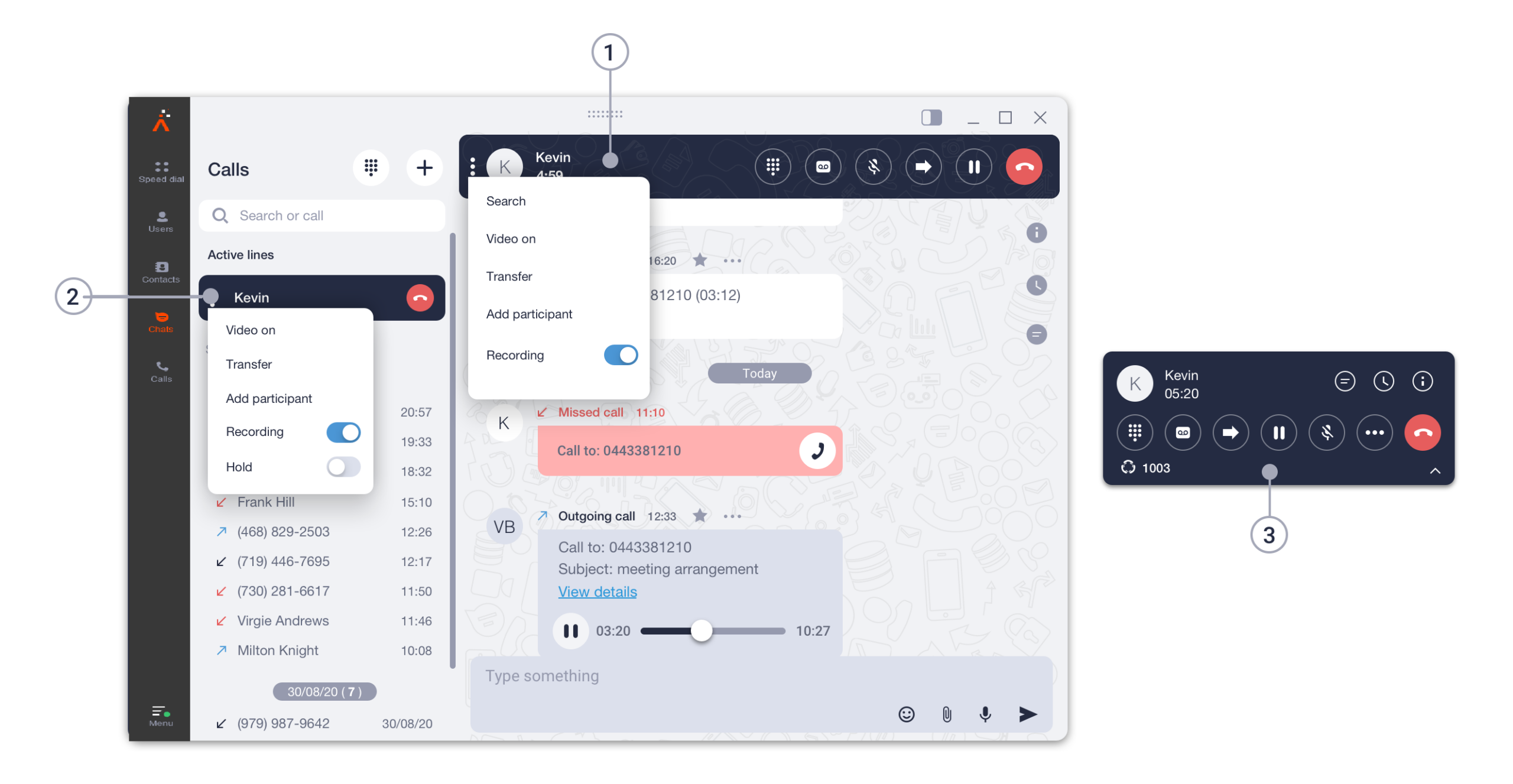
- Call panel. You can access a call panel by clicking on a contact you’re currently talking to in the list of contacts, chats, or calls, or by double-clicking on an Active Line.
- Active lines panel. This is where all your active calls will be displayed.
- Pop-up window. This panel will automatically pop up if a contact you’re talking to is not selected in the tabs panel.
Putting a call on Hold #
To place a call on hold:
- Click the Hold icon
 on the Call Panel or Pop‑up window,
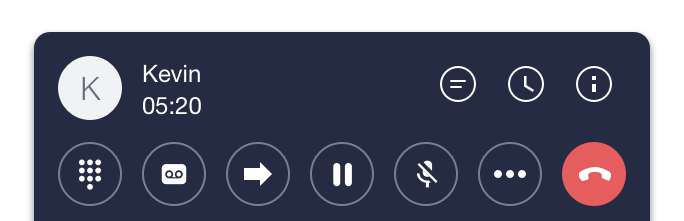
- Click the three‑dot menu on the Active Line and select Hold.

To resume the call:
- Click the Hold icon again to take the call off hold.
Opening Dial Plan during the call #
DTMF is used when you need to press numbers during a call (for example, voicemail menus or IVRs).
How to send DTMF:
- Click the Dial Pad icon
 on the Call Panel or Pop‑up window.
 - Use the on‑screen keypad to send tones during the call.
Important: The dial pad in the Search Bar does not send DTMF during an active call.
Call Transfer (Desktop) #
Blind (Cold) Transfer #
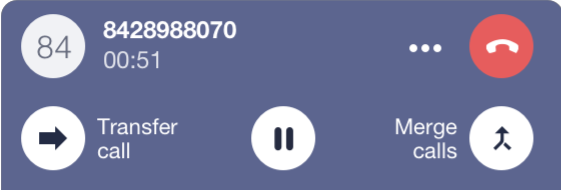
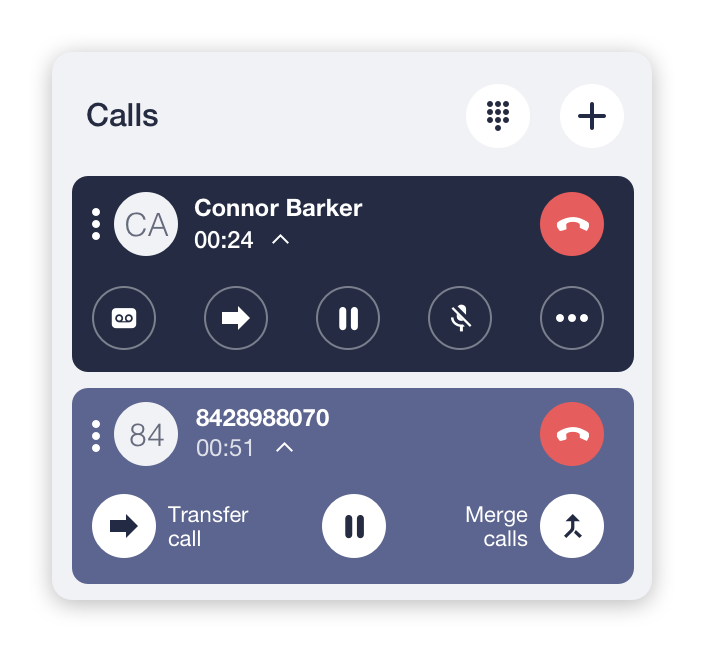
- Click the Transfer icon
 on the Call Panel or Pop‑up window
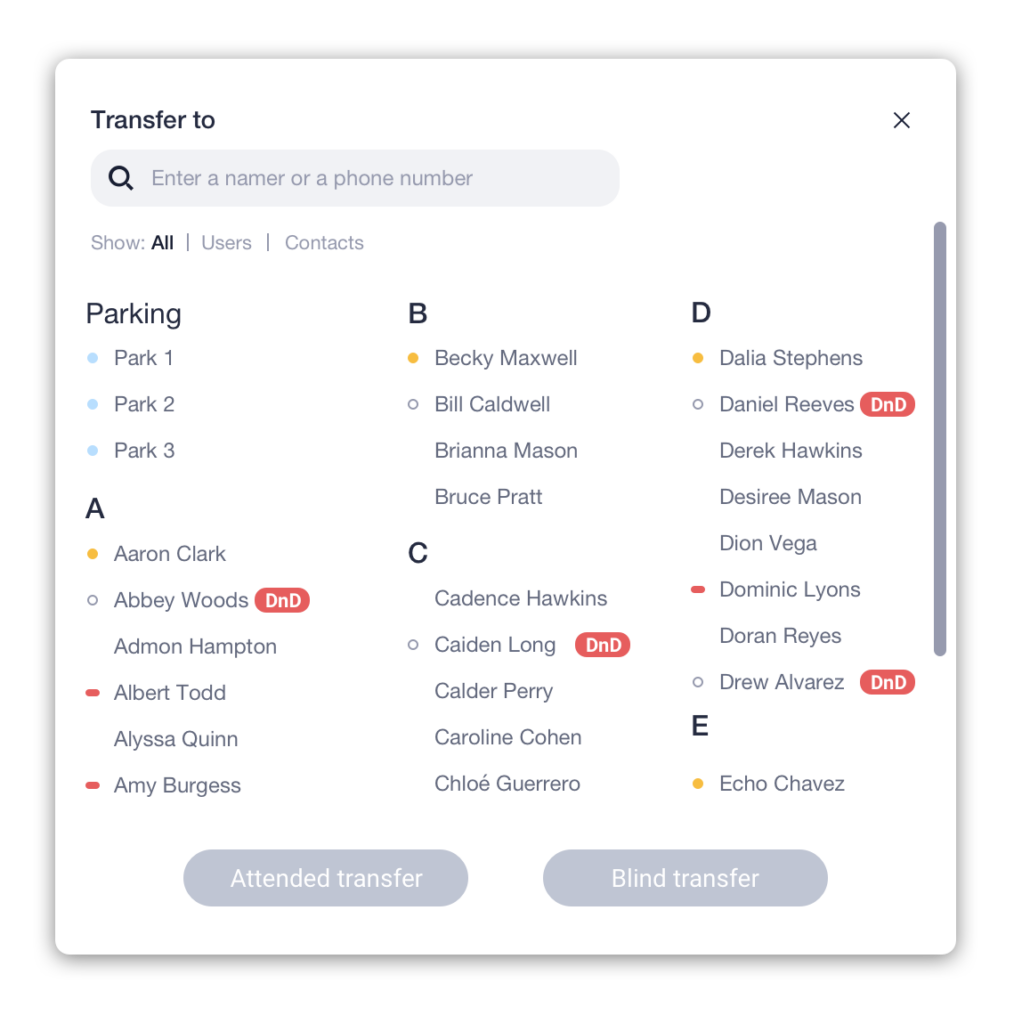
OR click the three‑dot menu on an Active Line and select Transfer. - Select a contact or enter a phone number in the search field.
- Click Blind Transfer to complete the transfer.
Attended (Warm) Transfer #
- Open the Transfer panel as above.
- Click Attended Transfer instead of Blind.
- A second active call panel appears while the first call is automatically placed on hold.
- After speaking with the second party, click Transfer to connect the two callers together.
Alternative transfer method #
- Start a new outgoing call while already on an active call (the first call is placed on hold automatically).
- Once connected, click Transfer to join the two parties.
Call Parking (Desktop) #
Call Parking allows you to place a call on hold in a shared parking slot so another user can retrieve it from a different device or extension.
To park a call:
- Click the Transfer icon on the Call Panel or Pop‑up window
OR click the three‑dot menu on the Active Line and choose Transfer. - Select a parking slot from the Parking list.
- Confirm the action — the call is now parked and your line is released.
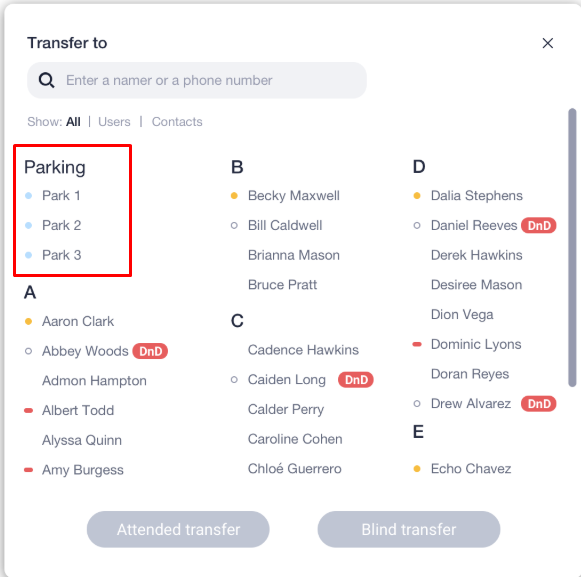
If all parking slots are busy, no parking slots will appear.
To retrieve a parked call:
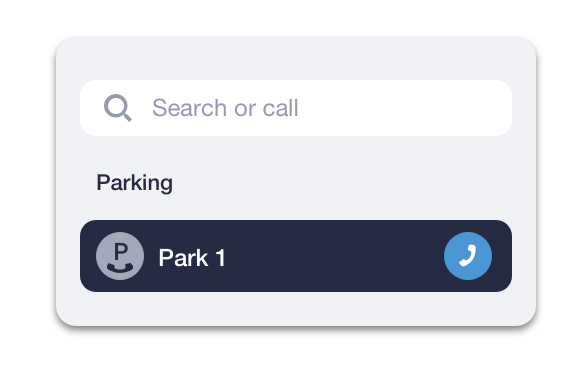
- Parked calls appear under the Search Bar.
- Click the phone icon next to the parked call to pick it up.
- Any authorized colleague can retrieve the parked call.
Creating Conference Calls #
You can create a conference by adding participants one at a time.
- While on a call with the first person, place a new outgoing call to another participant (the first call goes on hold automatically).
- When the second person answers, click Merge
 on the Active Line or Pop‑up window.
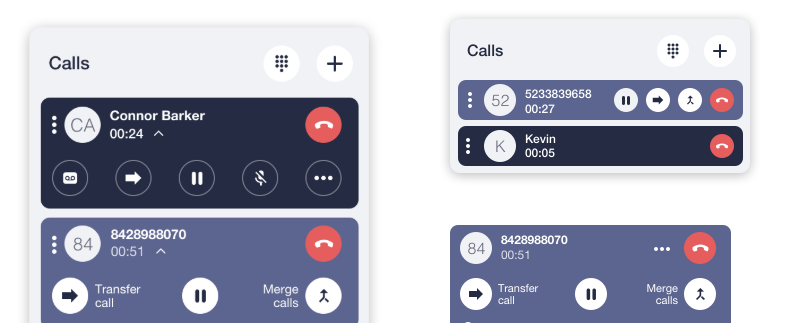
- The two calls will combine into a single conference.
- Repeat these steps to add additional participants.


